

Build, run and moderate a ClickMind community
Everything from generating a platform on the public site through to the day-to-day moderation queues — the self-service signup, the admin platform, and the community app your members use.
01 Create your community
Anyone can generate a community platform from the public site — no sales call, no contract. It takes four screens and an email confirmation.
The four-step wizard
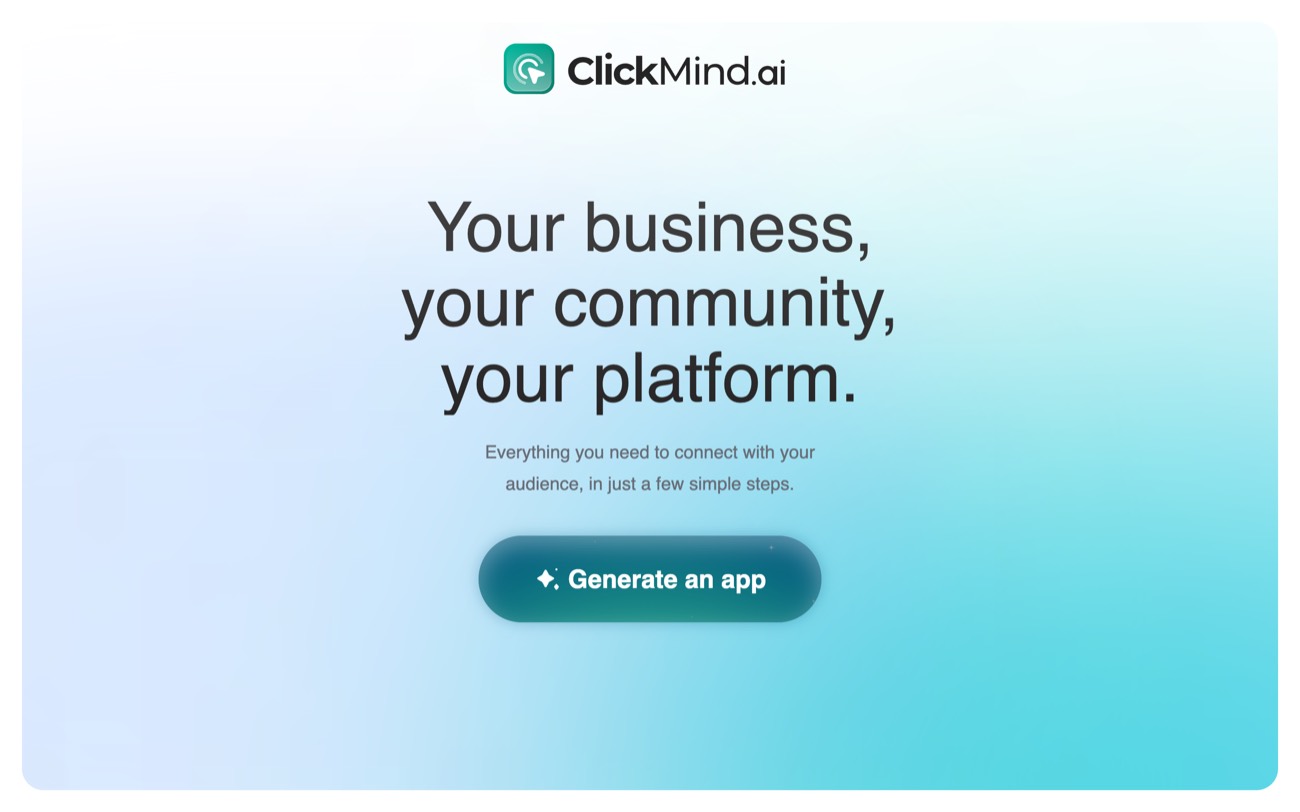
Go to community.clickmind.ai and press Generate an app. The landing screen is step one of the wizard, so nothing navigates away — the card simply advances.
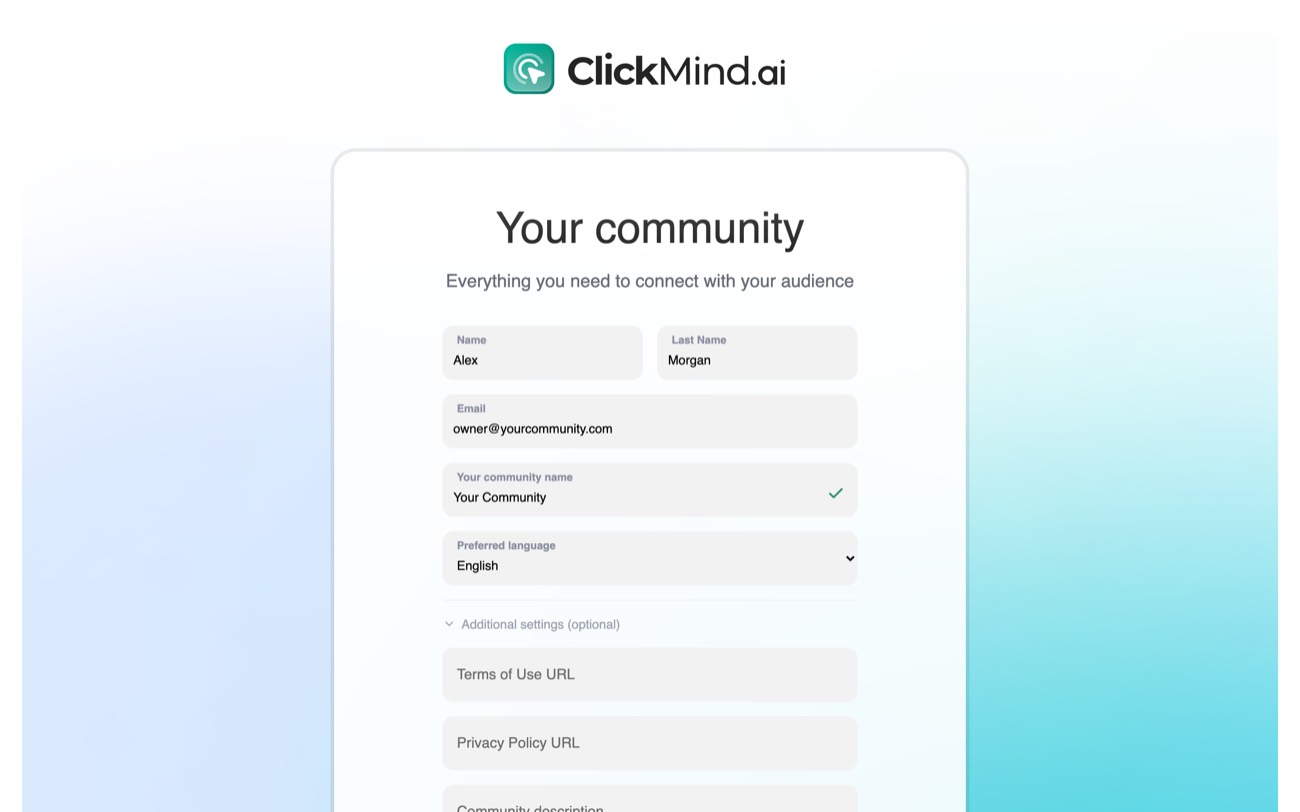
Step 2 — your details
Four required fields plus a language. The community name is checked against the platform as you type; a green tick means the name is free and the slug derived from it is available.
.jpeg)
Steps 3 and 4 — brand colour and logo
Pick one of six presets or type a hex value. The colour becomes your primary throughout both apps — buttons, links, the sign-in panel, and the accent in your emails. The logo is optional at this stage; skip it and a placeholder is generated from your community's initial.
.jpeg)
.jpeg)
Confirm and provision
A signup request accepts five code attempts, then locks. Pressing Resend issues a new code and resets the counter, so a lockout is recoverable — but the old code stops working the moment a new one is issued.
Self-service signup provisions a community-only platform. That is why your admin sidebar has three sections rather than the full investment suite — Users, Employees and Community. Other modules (CRM, investor relations) are added by ClickMind, not by signup.
First sign-in
Your password is generated by the platform and never shown on screen. The welcome email contains a one-time sign-in link, valid for 30 minutes, that takes you straight into the community app on a set-your-password screen. Set a password there and you can then sign in to both apps with it.Your account holds two roles at once: Admin for the management platform and Client for the community app. Same email, same password, two front doors.
Use Forgot password? on either sign-in screen. That sends a fresh reset link to the same address
On community.sandbox.clickmind.ai the confirmation code is not returned in the response — a real email has to arrive, to a real inbox you control. Plan sandbox demos around an address you can actually read.
02The admin platform
Where you moderate content, manage members, add colleagues, and control how your apps look and read.
Signing in
Open admin-<slug>.clickmind.com — or admin.<your-domain> if you are on your own domain. The screen carries your community's name and logo, and the language switcher in the corner covers English, German and French.
.jpeg)
.jpeg)
Layout & navigation
A collapsible sidebar on the left, grouped into General, Activity and Social. Section tabs run across the top of each page. Your avatar in the top-right holds everything that is not a daily task
.jpeg)
Community
Eight tabs. The first two are content browsers; the middle five are moderation queues, one per kind of thing a member can report; the last is your suspension list.
.jpeg)
.jpeg)
.jpeg)
.jpeg)
How a report is handled
Several members can report the same thing, so a queue row is one piece of content carrying many reports. Opening a row splits the screen in two: Reported by on the left, Post details on the right.
.jpeg)
Report reasons
Members pick one reason from a fixed list, and it is shown to you verbatim in the queue. Eight options, the last being free text:
- Spam
- Harrasmentspelled this way in the product
- Hate speech
- Misinformation
- Nudity or sexual activity
- Violence or threats
- Copyright violation
- Other — with a free-text box
.jpeg)
.jpeg)
Suspending a member
Suspension is done from a member's community profile, not from the queue row. Open the reported member and use the suspend control; you are offered three scopes:
Lifting a community suspension restores the member's previously hidden content as well as their access, so a suspension is reversible rather than destructive.
The Community section and every action in it are open to Admin and Marketing. No other employee role can read or resolve reports. See Employees & roles.
Users
Your members. On a community-only platform this section has four tabs; platforms with investment products get three more.
.jpeg)
.jpeg)
.jpeg)
.xlsx, .xls or .csv, up to 20 MB.Inside a member
Clicking a member opens their record. On a community-only platform you get:
- User details — profile, contact details, status, verification.
- Notifications — what they have been sent, and a form to send another.
- Activity — their audit trail.
Their community profile — posts, stories, followers, and the suspend control — is reached from the Community section instead, by clicking through from any of their posts.
Employees & roles
Employees are your staff: people who sign in to this admin platform. Two tabs, Active and Inactive, and a Create employee button.
.jpeg)
Adding someone
They receive an invitation email with a link to set their own password. You never handle their password.
.jpeg)
There is no role literally named "Moderator". Marketing is the moderator role: it is the only non-Admin role the community moderation endpoints accept. Pair it with Client if you also want them to post as a member.
Admin may only be used alone or together with CRM admin — every other combination with Admin is rejected. CRM admin and CRM agent cannot be combined with each other. All other roles combine freely.
Deactivating an employee moves them to the Inactive tab and revokes their sign-in immediately, without deleting their history.
App Config
Reached from the avatar menu, at /app-config. Five tabs, each a read-only summary with an Edit button that turns it into a form with Save changes and Discard
.jpeg)
.jpeg)
.jpeg)
Admin sees all five tabs. A Tenant admin — a ClickMind-side role, not one you can assign — sees only Product Labels. Every other role has no access to /app-config at all.
Profile and Company
The other two entries in the avatar menu. Profile is your own account — name, contact details, password. Company holds your legal company information, and is Admin-only.
03The community app
What your members see at app-<slug>.clickmind.com. Feed, posts, stories, profiles.
Joining
The sign-in screen carries your community's name, colour and logo. New members use Sign up below the form; existing ones sign in and land on the feed.
.jpeg)
New accounts confirm their email before they can take part. Until they do they appear under Users → Not verified in the admin platform, where you can resend the verification.
A new member landing on the feed for the first time gets a six-slide "Your community just got better" overlay with Skip and Show me what's new. It is a platform default rather than something you configured — the Onboarding entry in App Config → Pages reads Not created on a fresh community and this still appears. Create that page if you want your own first-run content instead.
Feed
The default screen. A stories rail across the top, the timeline below it, and a round + button in the bottom-right corner that opens the composer. Two tabs — Feed and Profile — switch between the community and the member's own page.
.jpeg)
The header carries three controls:
- Search — members, posts and hashtags..
- Notifications — what they have been sent, and a form to send another.
- Activity — their audit trail.
Posting
The composer opens over the feed. Text up to 2,000 characters with a live counter, and three expandable options underneath.
.jpeg)
Hashtags typed into the body become searchable, and the composer suggests ones already in use.
What members can do with a post
- React — likes carry a reaction type, and the liker list is viewable.
- Comment, including @mentions of other members, who are notified.
- Share — generates a link that renders a preview card outside the app.
- Block the author— hides them from that member's feed. Personal, not a moderation action.
- Follow the author—surfaces their posts higher.
- Authors can edit or delete their own posts.
Stories & highlights
Stories are images or short videos that expire after 24 hours. Members post one from the Your story ring at the left of the rail; rings with unseen stories are marked.
- Viewers — authors see exactly who watched.
- Mentions —a story can mention a member, who is notified and can open straight to it.
- Highlights — saved collections that outlive the 24 hours, pinned to the member's profile with a chosen cover.
- Report — reasons as for posts, landing in Story reports.
A reported story disappears after 24 hours whether or not you have acted on the report. Work that queue promptly, or the content is gone before you have seen it
Profile
The Profile tab is a member's own page: picture, username, bio, link, their posts, and their highlights. Follower and following counts open full lists.
.jpeg)
.jpeg)
Opening another member's profile gives the same view plus Follow, Block and Report — the last being what fills your Profile reports queue.
Account
Reached from the avatar menu. Separate from the community profile: this is the account itself rather than the public persona.
- Information — name, contact details, address.
- Profile —account-level profile, including Delete account.
- Settings — language, appearance, notification preferences.
- Support — how to reach you, using the support email from signup or App Config.
.jpeg)
.jpeg)
04Reference
Routes, permissions, and what to check before you point real members at it.
Route map
Paths are relative to the app's host. Deep links work — bookmark any of these.
Admin platform
Community app
Role matrix
What each assignable employee role can reach on a community-only platform.
Go-live checklist
Before you send the URL to real members:
Screenshots were taken against a live sandbox community seeded with demo content. The community name, member names and email addresses in them are placeholders. Counts are real but small, and the tabs shown empty genuinely had nothing in them at capture time.